
Publish Apps and Manage Versions
Publishing an app takes your work out of the draft phase and makes it live for your team. You can work on app updates without affecting your currently published app via App Versions.
App Versions allow you to freely experiment on new layouts and features without disrupting your users workflow.
What Publishing An App Does
There is an important difference between editing an app and actively using it. The App Studio is where editors make structural changes in a private draft space.
When you publish an app, you push those changes out to your team. Publishing chooses exactly which iteration of your app users will interact with in their live experience.
How to Publish and Unpublish Apps
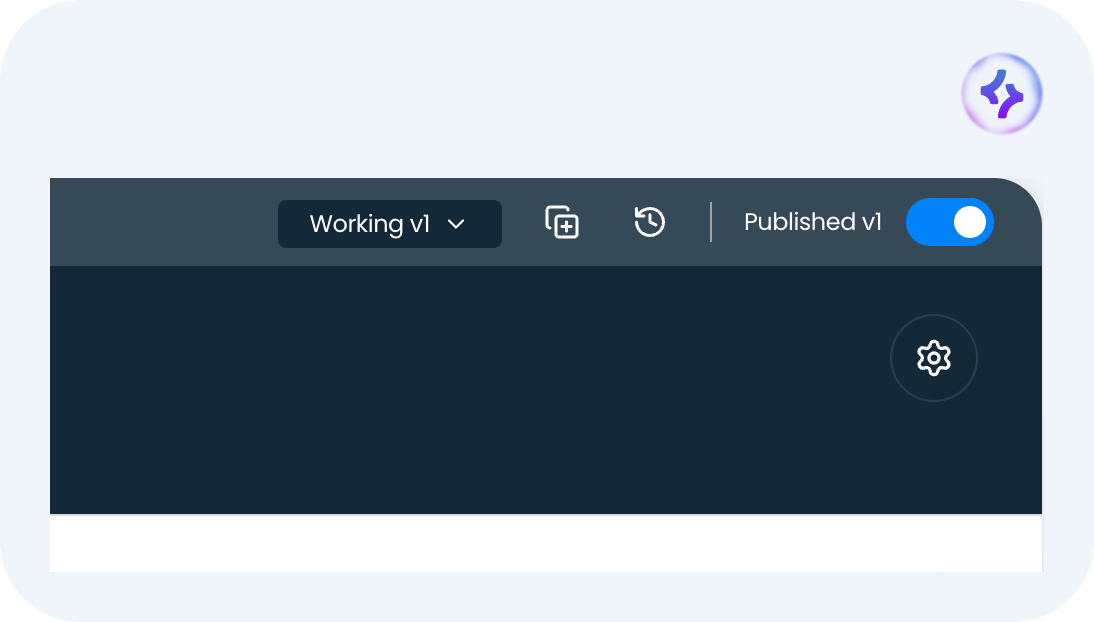
Once you are happy with your draft and ready for the team to use it, click the "Publish" button in the top right corner of the App Studio.
If you ever need to take the app offline for maintenance or because it is no longer needed, simply go to your app settings and click "Unpublish."
Unpublishing an app immediately hides it from your live workspace. Regular team members will no longer be able to view those screens or interact with the data.
What Are App Versions?
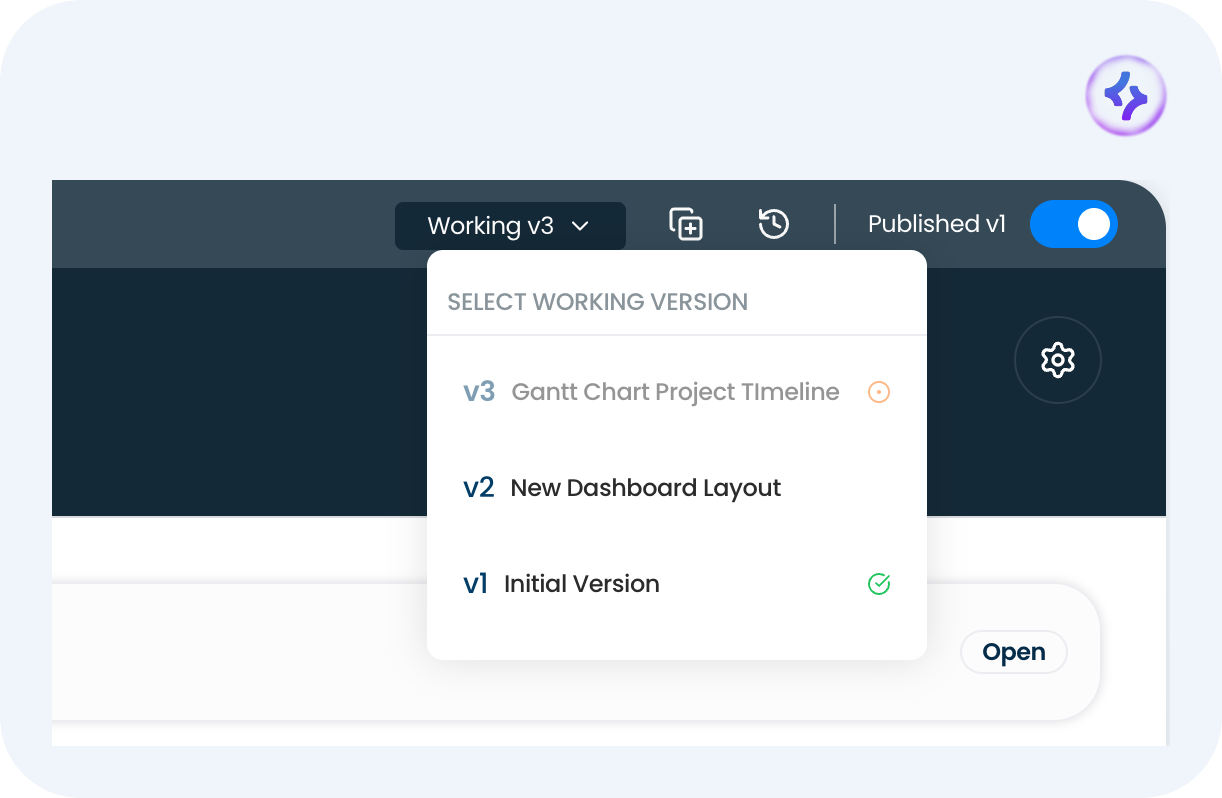
A version is a securely saved state of your app's screens, data setup, and workflows at a specific point in time.
The biggest benefit of utilizing versions is the freedom to experiment safely. You can try adding a new widget, changing a layout, or testing a new Agent without fear.
If an experimental change breaks something, you can easily roll back to the last stable version to restore your app immediately.
How to Manage and Switch Versions
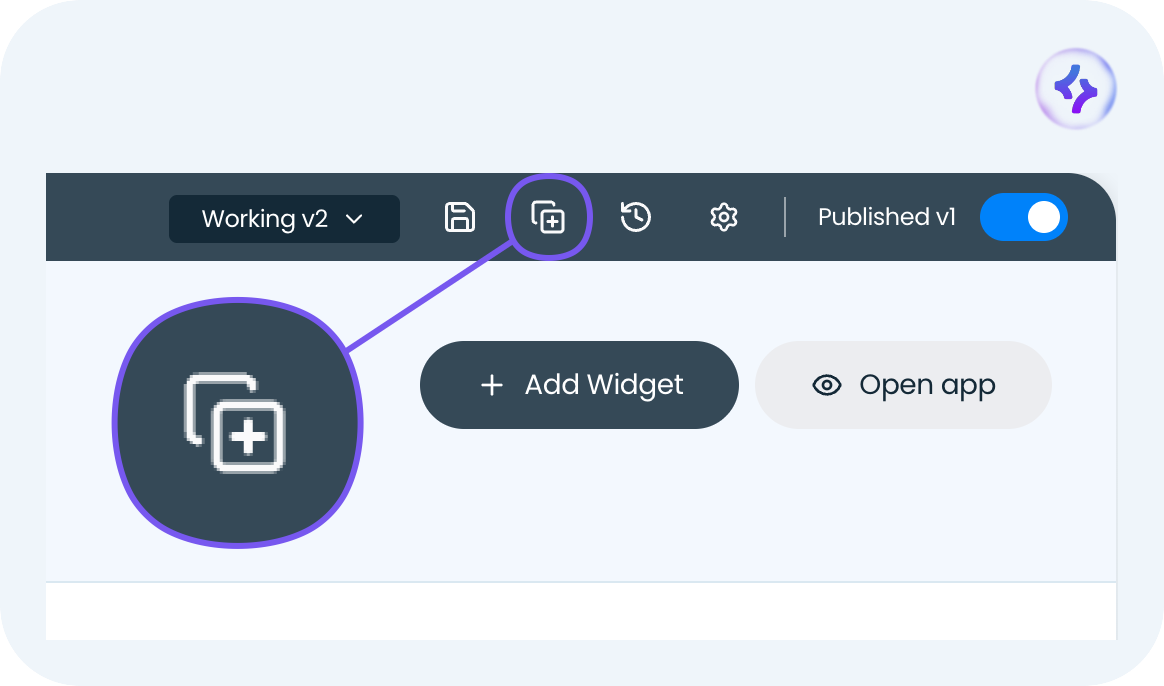
To create a new app version, click the Create New Version button at the top-right corner of your screen. You'll then be redirected to the newly created version of your app.
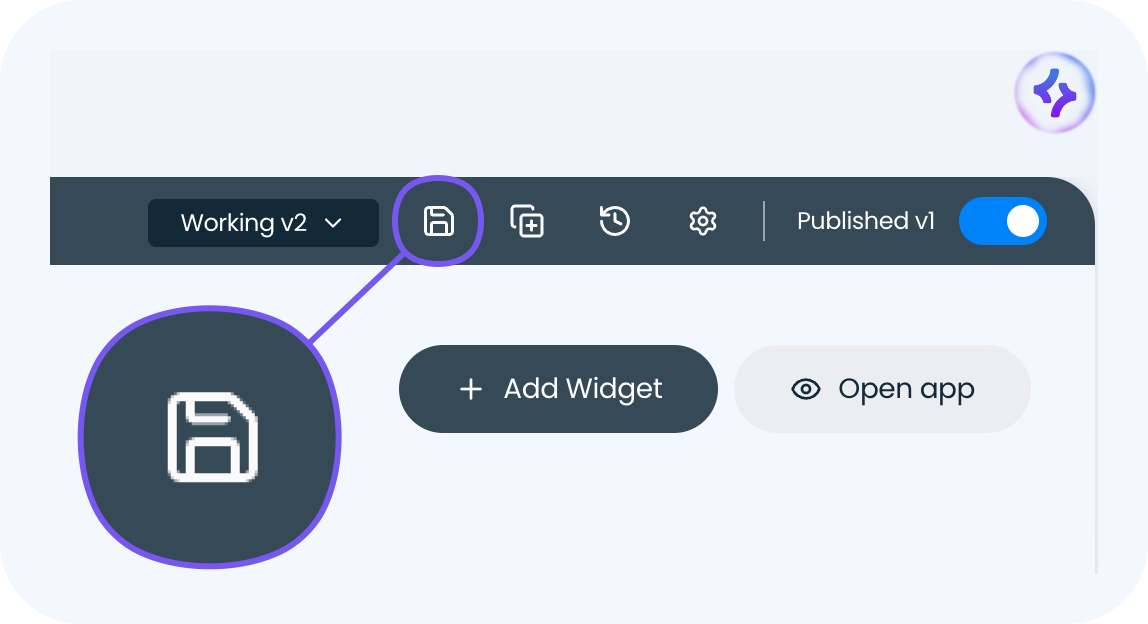
There, you can freely customize your app without making changes to your other app versions. Once you're done, click the Save Change button to keep your changes
To switch between different saves, open your version history panel. From there, you can select any previous version and click "Restore" to instantly revert your workspace to that exact state.
Safe Publish Checklist
Before publishing a new app or a major update, run through this quick checklist:
- Add a few realistic test records.
- Check the main screens to ensure they display properly.
- Test key automations to verify they run correctly.
- Confirm team roles and permissions are accurate.
- Publish the intended version.