
How To Use Data Tables in Smartoo
Data tables are where all the information for your apps is defined and managed. You can think of a table like a highly organized spreadsheet designed specifically for the type of data your business tracks.
Because tables are workspace-wide, you can create one "Clients" table and reuse it across multiple different apps in your workspace, ensuring your data is always perfectly synced.
Anatomy of a Data Table
Every Smartoo data table is made up of two main parts:
Records (Rows): The individual items in the table (e.g., one specific project or one specific client). Fields (Columns): The details stored for each record (e.g., the project's Due Date or the client's Phone Number).
Creating a New Table
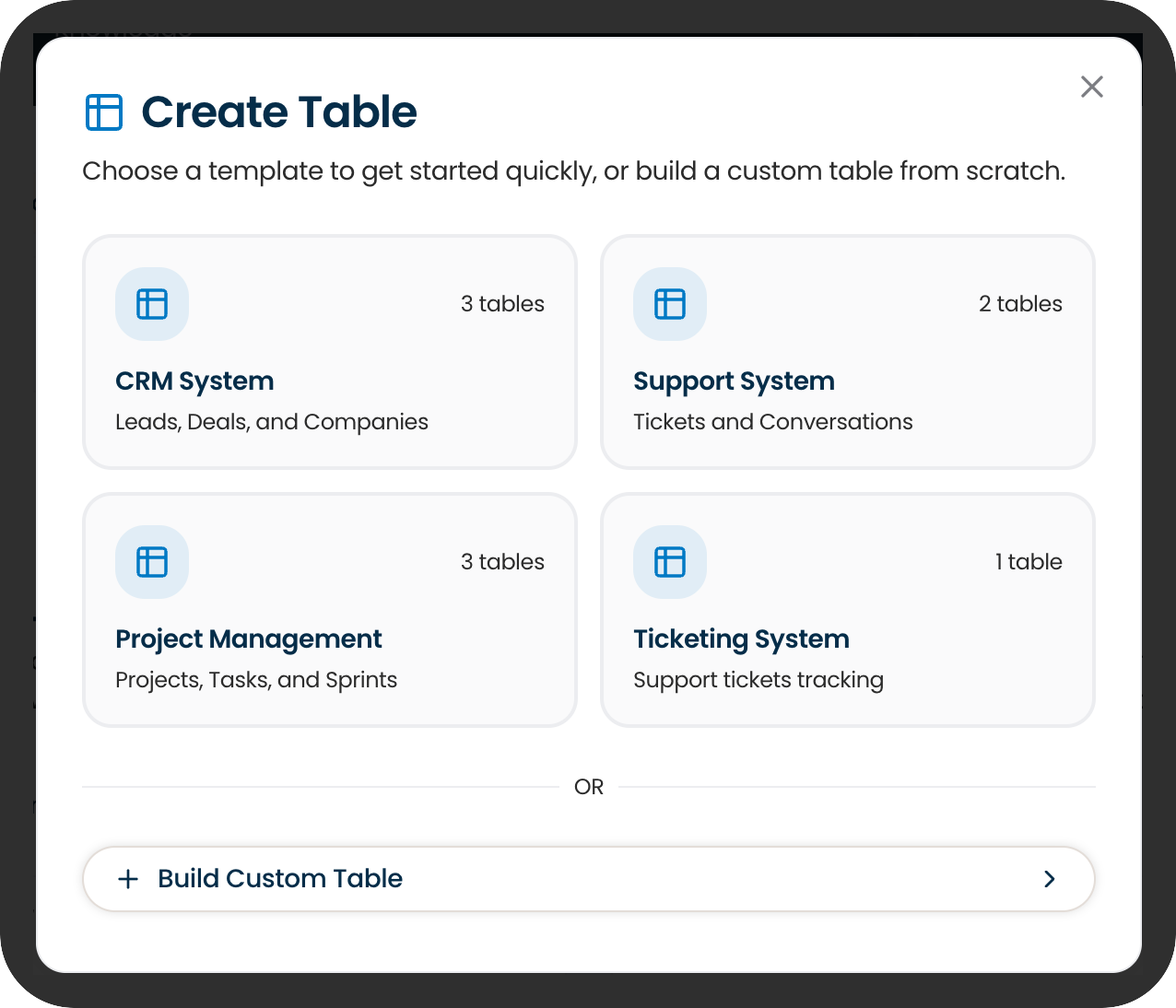
- Visit Data in Studio
- Click + Create Table.
- Choose from pre-built Smartoo tables or build custom ones.
Adding Fields (Columns)
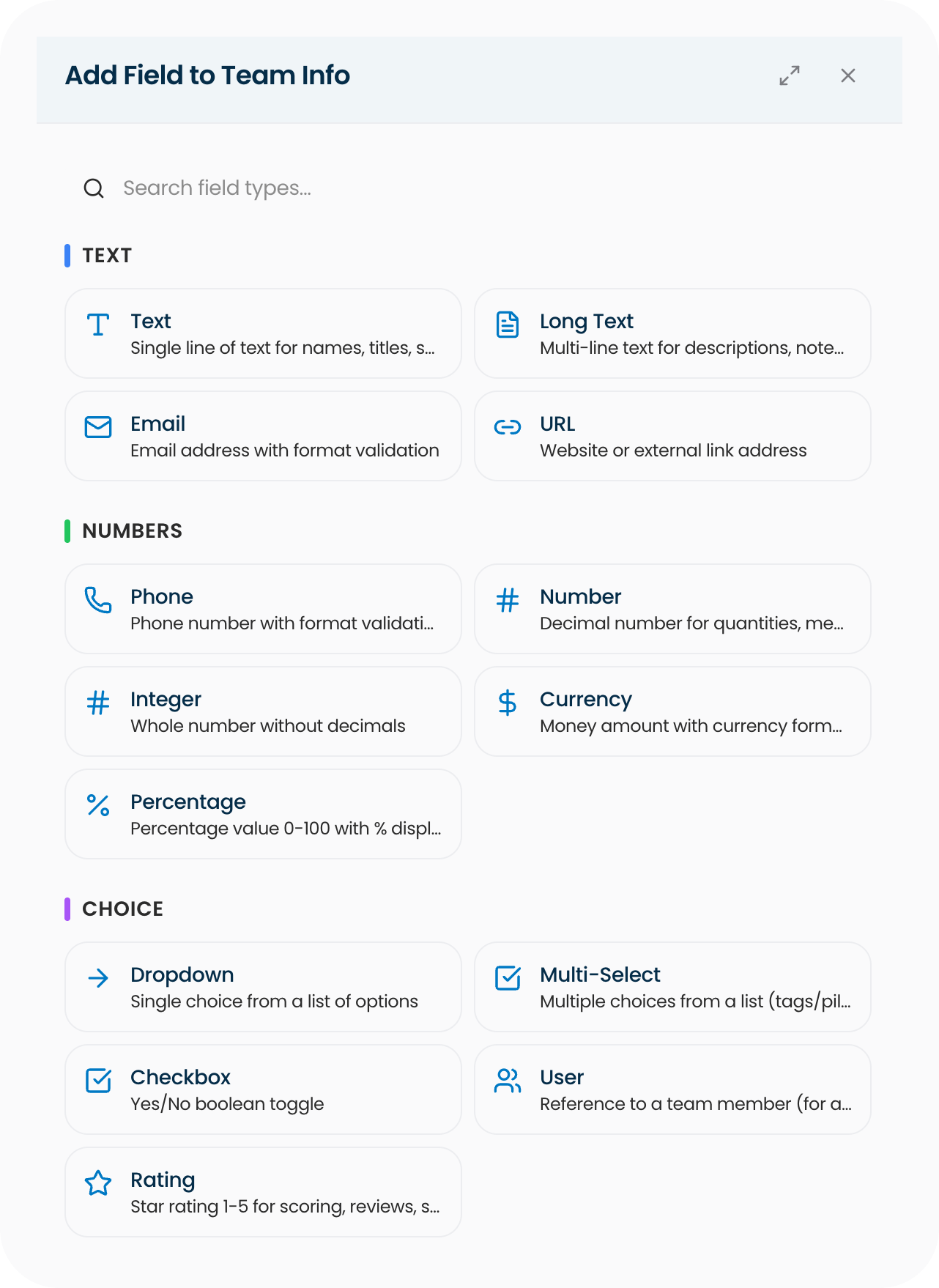
To capture specific details about your records, you need to add fields.
- Open the table you want to edit.
- Click the + button located in the table header.
- Choose a field type (such as Text, Date, or Select) and configure its name and options.
Searching and Filtering Records
When your table starts filling up with data, you can quickly find what you need using the tools at the top of the table:
Search: Quickly locate specific words or numbers across your records.
Filter: Narrow down your view by setting rules (e.g., "Only show tasks where Status is 'In Progress'").
(Note: Sorting columns is not currently available, so rely on search and filters to find records efficiently.)
Importing and Exporting CSV Files
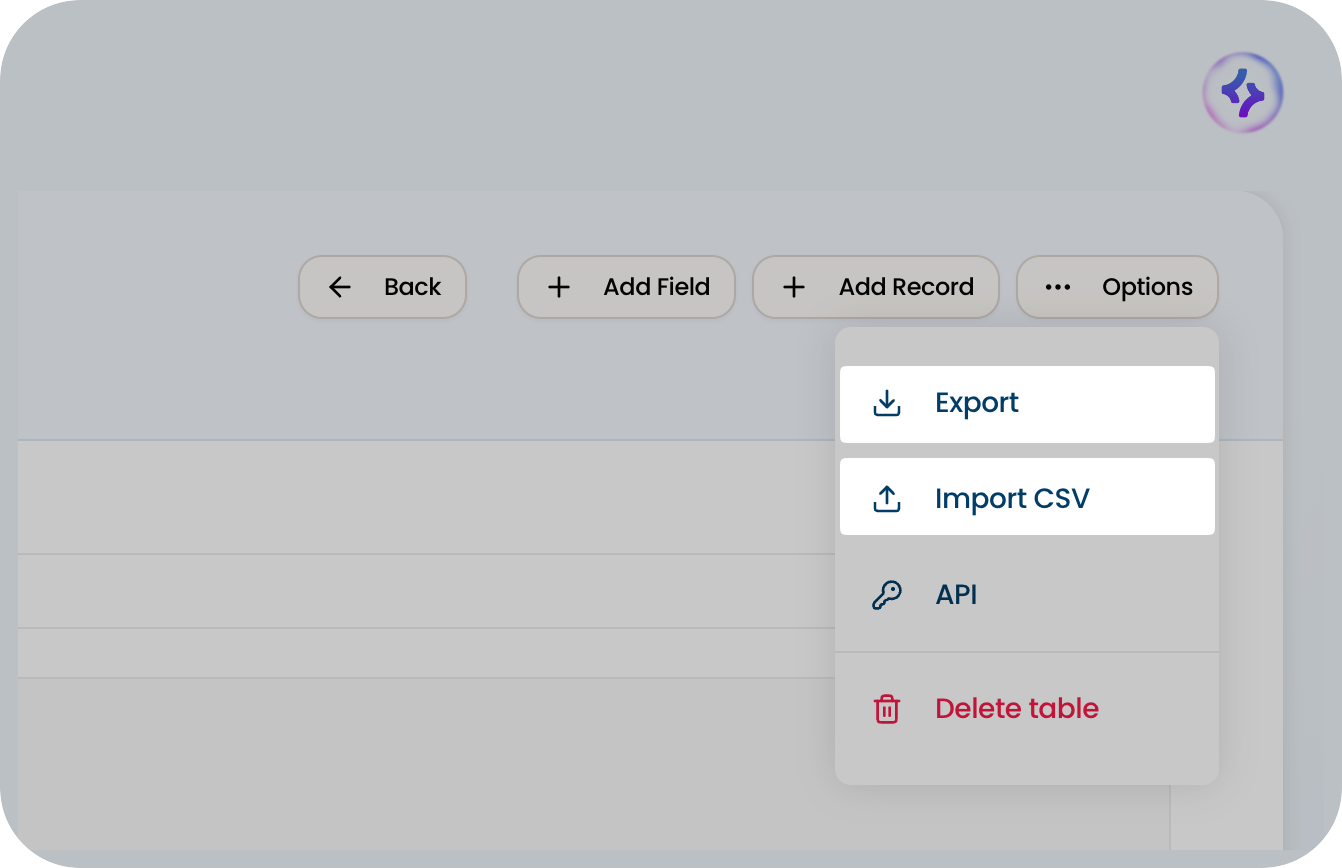
You don't have to type out all your existing data by hand. Smartoo fully supports CSV imports and exports.
Importing data: Bring in existing lists from other tools like Excel or Google Sheets. When importing, ensure your CSV has clear column headers, as these will become your fields in Smartoo. Ensure data formatting (like dates) is consistent.
Exporting data: Download your table as a CSV file anytime you need to back up your data, share it outside of Smartoo, or run external analyses.
Tips for Managing Data Tables
Name fields clearly: Use plain language that matches how your team actually talks. Name a field "Due Date" rather than a vague "Date".
Clean up your CSVs first: Before importing a CSV, take five minutes to clean up the spreadsheet in Excel or Google Sheets. Removing blank columns and fixing formatting errors will make the import process completely seamless.
Build for reuse: Remember that tables are workspace-wide. When creating a table, ask yourself if another app might need this same information in the future.
In Summary
Data tables are the engine running beneath your apps. By setting up clean tables, utilizing the right field types, and importing your existing data, you create a solid foundation. Once your tables are built in the Data tab, you can seamlessly connect them to widgets in App Studio to let your users view, edit, and interact with the data directly inside your apps.