
App Actions Overview
Actions define what happens when a user clicks a button, submits a form, or interacts with your app.
They bridge the gap between your users and your database, allowing people to do work, whether that means creating a new task, jumping to another page, or triggering a complex AI Agent to run in the background.
Smartoo's Foundation for Actions (CRUD)
Smartoo supports standard CRUD operations (Create, Read, Update, Delete), allowing you to build apps where users can safely manage records.
Create a record: Adds a brand new item to your database. Used for intake forms, adding new projects, or logging support tickets.
Update a record: Changes the specific fields of an existing item. Essential for moving a task's status to "Done," assigning an owner, or changing a due date.
Delete a record: Permanently removes an item from a table. Useful for cleaning up duplicate or invalid entries. (Note: It is highly recommended to limit delete actions to Admin users only).
Managing Actions for Your Apps
Actions can be found when you're editing a widget.
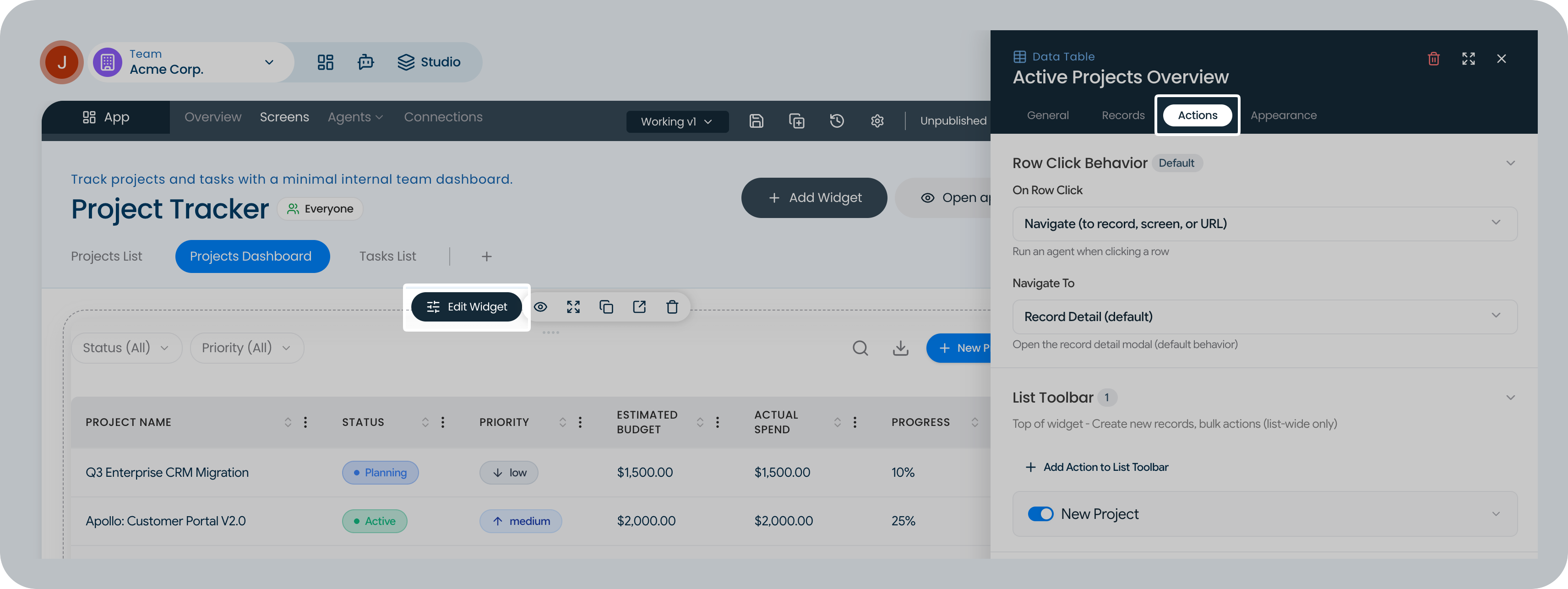
Not all actions manipulate data; some simply help users move through your app and find what they need quickly.
Navigate to another screen: Moves the user to a different part of the app. For example, clicking on a project in a list might trigger a navigation action that opens the detailed view of that specific project.
Filter or search data: Refines the records displayed on the screen based on specific criteria. For example, a button that filters a main data view to only show "Overdue Tasks" or "Requests Assigned to Me."
Connecting Actions to AI Agents and Workflows
Actions are the primary way users interact with your automated systems.
Trigger a workflow: You can configure a button or form submission to instantly wake up a Smartoo AI Agent. For example, when a user clicks "Submit for Approval," the action can trigger an agent to read the submission, route it to the correct manager, and send a notification email.
Building and Configuring actions
Actions can be added and refined in two ways:
Using the visual builder: While in App Studio, you can click on interactive widgets (like buttons or forms) and manually configure their actions in the right-hand settings panel.
Using the Smartoo Assistant: The fastest way to build actions is to just ask the AI. Simply describe the behavior you want, and the Assistant will configure the logic instantly.
Example prompts to try with the Assistant:
- "When someone submits this form, create a record in the Requests table and trigger an email to the manager."
- "Add a button to this list that marks a task as 'Done' and logs today's date."
- "Create a 'My Tasks' view, and make sure clicking a task navigates to its details page."
- "Set permissions so that only Admins can see the 'Delete' button."
Best Practices for Designing Actions
Be descriptive with button text: A button that says "Approve Request" is much clearer than one that just says "Submit" or "Click Here." Tell the user exactly what the action will do.
Protect destructive actions: Always restrict who has the power to delete records or trigger massive data updates. Use role-based permissions to hide these actions from standard users.
Combine actions: Remember that a single button click can perform multiple actions. You can configure a "Save" button to update a database record and navigate the user back to the home screen at the same time.
In Summary
Actions turn static screens into dynamic, interactive workspaces. By thoughtfully configuring how users create data, navigate pages, and trigger AI workflows, you dictate the entire flow of your application.
Whether you set them up manually in App Studio or ask the Smartoo Assistant to build them for you, clear, and well-designed actions are the key to building an app that your team will actually love to use.