
Understand Apps, Screens, Data, and AI Agents
Before you start building, it helps to understand the core building blocks behind Smartoo apps.
An App brings together these components so your team can manage a business process in one place. Here is a direct look at how the system works and how to manage each piece.
Apps

Smartoo apps are secure, functional business tools built to manage your team's specific workflows. They are made up of widgets, which display tables, metrics, texts, etc. and screen, which act as tabs on your app.
Apps on Smartoo are designed with collaborations in mind, and made better with granular permissions so you control which users can view and manage your workspace.
Screens
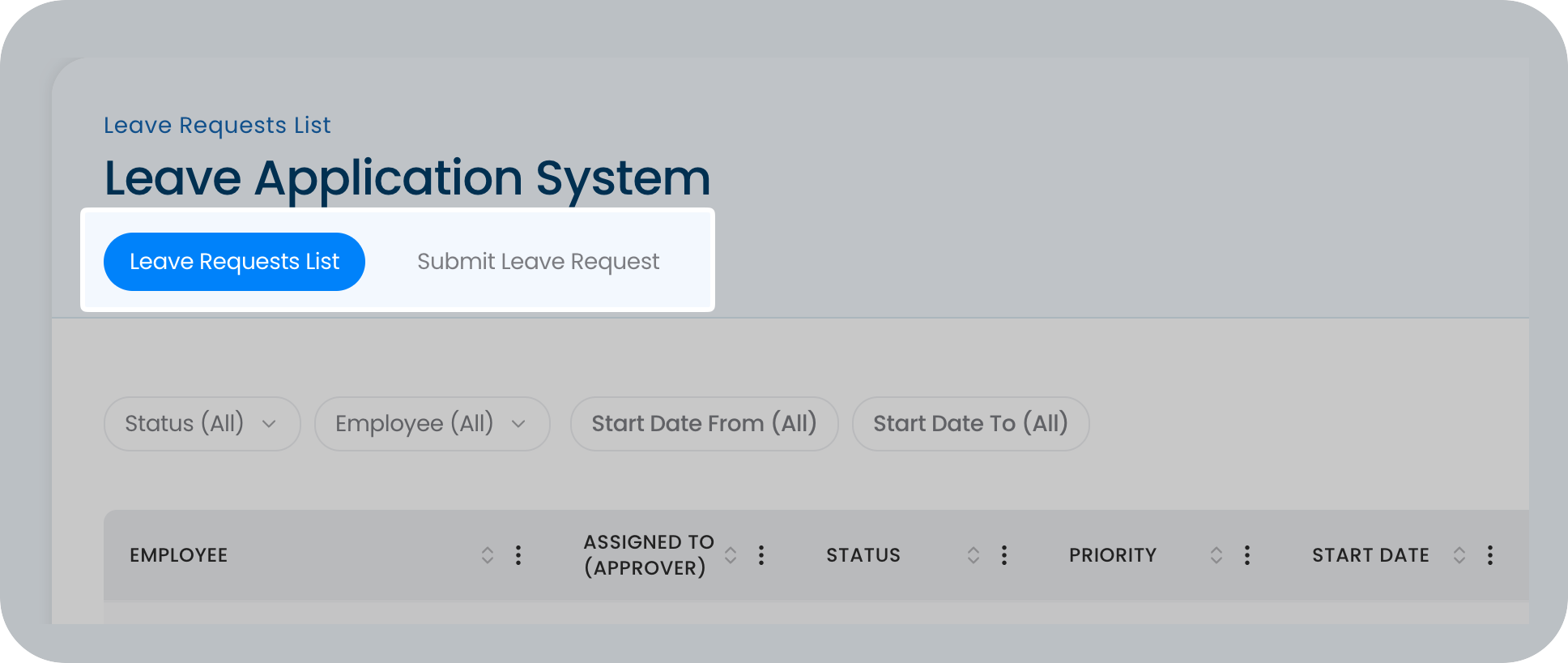
Screens act as the tabs or individual pages within your app. They are the interfaces where people open the app to do their work.
Depending on what you need, screens can be designed as intake forms, lists, Kanban boards, dashboards, portals, and much more.
- Add new screens: Click the + button next to your existing screens in the App Studio menu.
- Customize screens: Click the three dots next to a screen's name and select the Settings tab to adjust its layout, widgets, and behavior.
- Manage screen access: Click the three dots next to a screen's name, then go to the Access tab to control which specific users or roles are allowed to view that tab.
Data Tables
Data tables are your apps' brain. Built on a relational database, you can link records across different tables and use them across all your apps to keep information connected.
For example, you can connect a specific task record directly to a client profile. These tables store your structured records, like tasks, clients, requests, deals, or approvals.
- Create tables: Go to the App Studio, navigate to the Data section, and click + Create Table.
- Import data: Once you create a table, you can easily bring in your existing records by clicking Import CSV in the top-right corner of the table view.
Agents & Workflows
Agents or AI Agents are workflows automations that run actions in the background when specific triggers are activated. They can read and update data, send notifications, use AI, or connect to other tools.
AI Agents go beyond basic triggers. By using artificial intelligence, they can make actual decisions and process complex information. For instance, an Agent can automatically draft an email response, summarize a long document, or route approvals based on specific logic.
You can integrate Agents directly into your workflows to handle repetitive tasks without any manual intervention. This frees your team up to focus on the work that actually requires a human touch.
Knowledge
Knowledge or Knowledge Base is where you can store business documents. Here, you can upload files like PDFs, internal policies, or company guidelines.
To keep everything structured and easy to manage, you can organize your uploaded documents into specific folders.
This feature directly supports your AI's responses, ensuring it gives accurate answers based on your own files. However, it is kept securely separate from your structured app data.
How They Work Together
To see how this all connects, let's look at a concrete example. A project management app might use a task table, a Kanban screen, a dashboard screen, and an Agent that reminds owners before deadlines.
The Data table securely holds the task information, while the Screens display those tasks using Kanban and metric widgets. Finally, the Agent automates the follow-up process so no one drops the ball.