
App Widgets Overview
Widgets are the building blocks of your app. They are the tables, Gantt charts, and dashboard metrics that you see and interact with. Each widget pulls data from Data Tables in the Database.
You can manage widgets by tinking with them in the app's Screen tab or through AI prompts.
Where Widgets Live
Widgets are managed inside your app's Screen tab. Visit your app via the App Studio and click Screen.
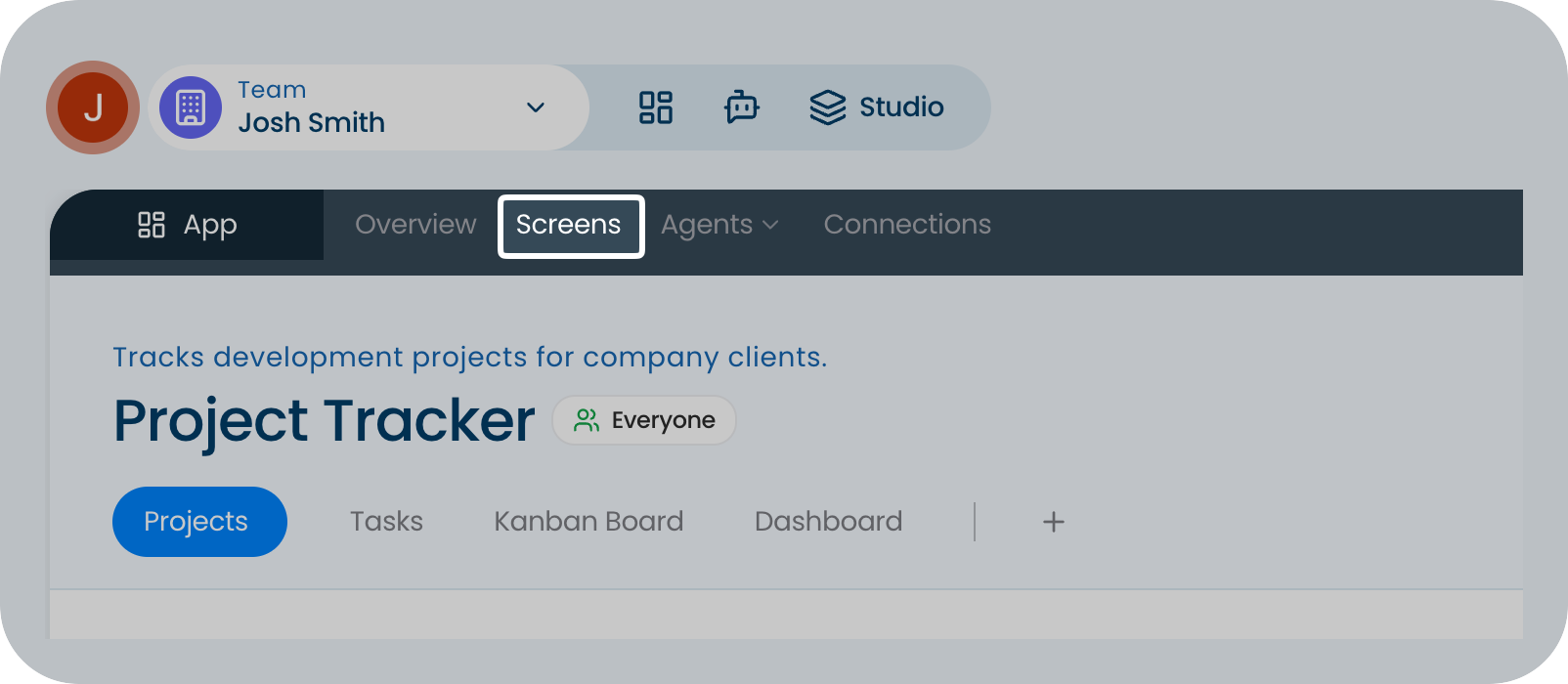
In App Studio, you can:
Add widgets to a blank or existing screen. Rearrange widgets using a simple drag-and-drop interface. Configure settings in the side panel (e.g., choosing which database a widget should pull from). Remove widgets to keep your interface clean and focused.
Understanding Widget Types
These widgets are used to build the core functionality of your app's dashboard and data views.
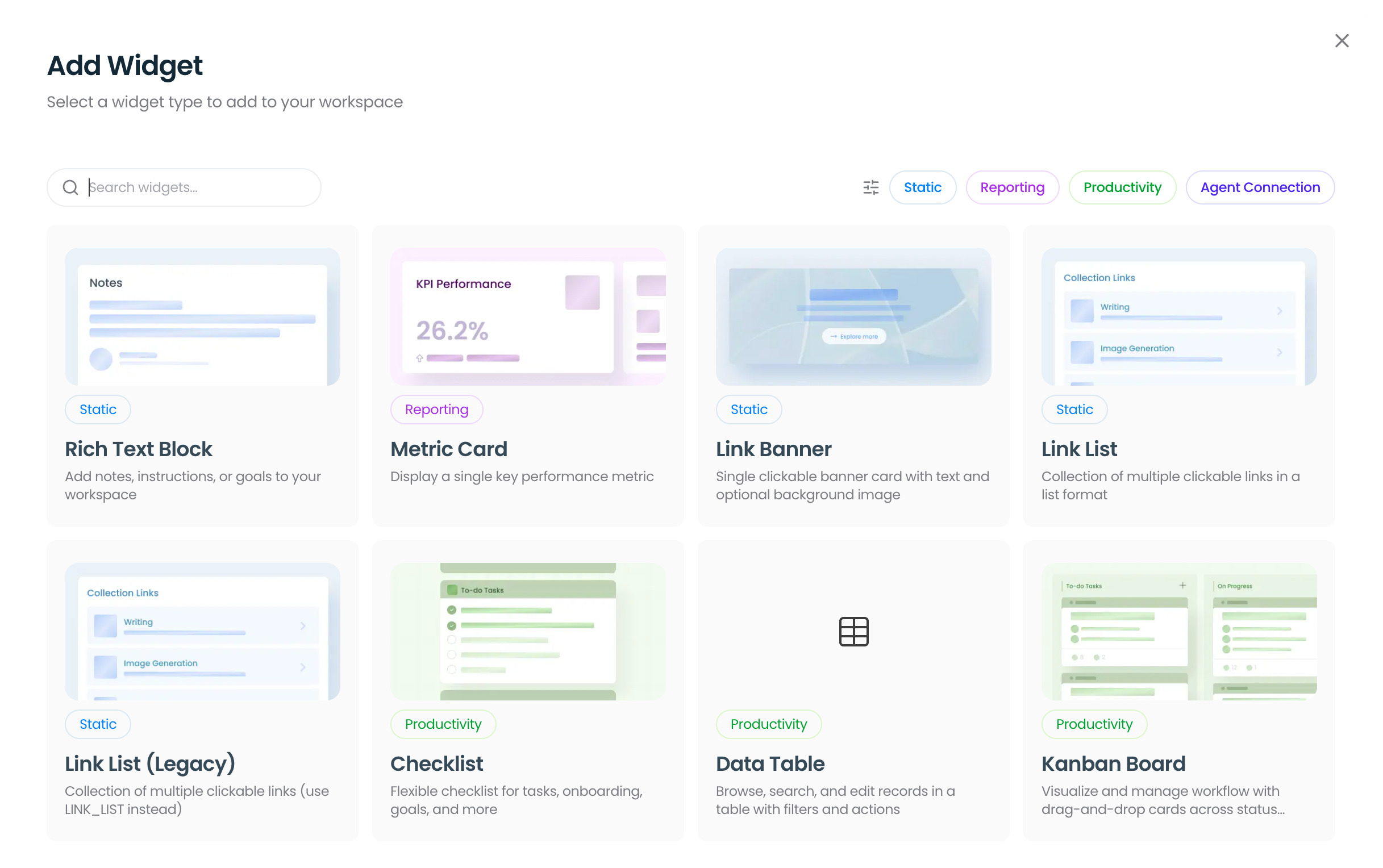 Rich Text Block: Add notes, instructions, or goals to your workspace. Metric Card: Display a single KPI. Link Banner: Single clickable banner card with text and optional background image. Link List: Collection of multiple clickable links in a list format. Link List (Legacy): Similar to Link List but uses LINK_LIST. Checklist: Flexible checklist for tasks, onboarding, goals, and more. Data Table: Browse, search, and edit records in a table with filters and actions. Kanban Board: Visualize and manage workflow with drag & drop cards. Chart: Visualize data with bar graphs, line charts, or scatter plots.
Customizing Widgets
There are multiple ways to customize your widgets. All of which can be done when you click Edit Widgets when hovering over them.
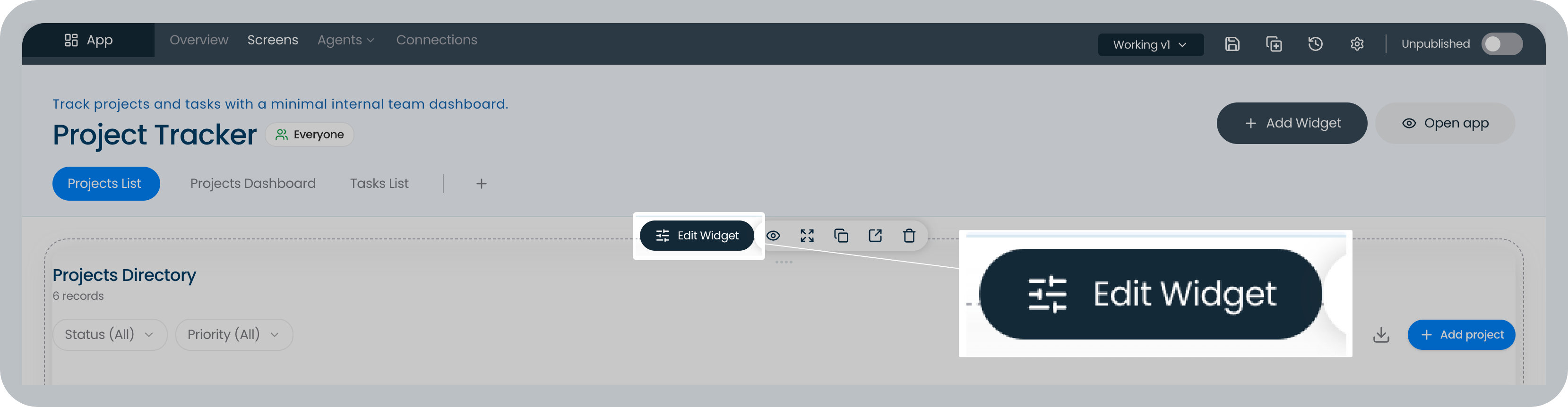
In the Edit Widget side panel, you'll see 4 tabs you can switch from - General, Records, Actions, and Appearance.
General: Manages functions depending on your widget. Records: Manages the rows of your widget (if any). Actions: What happens when you interact with the widget. Appearance: Customize the look of your widget.